**PREREQUSITE:** Before you can start translating, make sure you have a [Rikidar Authenticator](https://wiki.rikidar.eu/books/rikidar-authenticator/page/getting-a-rikidar-authenticator-account "Getting an Rikidar Authenticator account") account, along with the [required additional permissions](https://wiki.rikidar.eu/books/weblate-translation/page/getting-access-to-weblate "Getting Access to Weblate").
Now that you have access to Weblate, you can log in: 1. Go to [https://localization.code.rikidar.eu/](https://localization.code.rikidar.eu/). 2. You will see an overview of the currently active translation projects. Click `Sign In`. [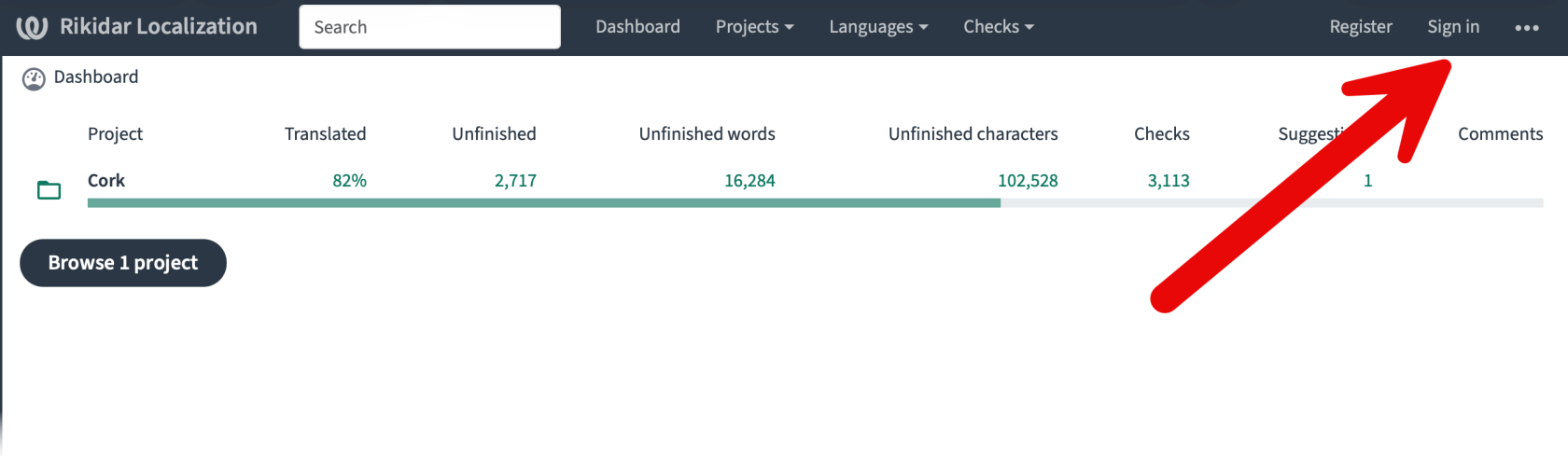](https://wiki.rikidar.eu/uploads/images/gallery/2026-08/2026-08-16-20-07-15.png) 3. You wil be automatically redirected to [Rikidar Authenticator](https://wiki.rikidar.eu/books/rikidar-authenticator "Rikidar Authenticator"), where you should [log in](https://wiki.rikidar.eu/books/rikidar-authenticator/page/using-rikidar-authenticator "Using Rikidar Authenticator"). To verify that you are logged in, click your avatar on the top right and see if your username matches. [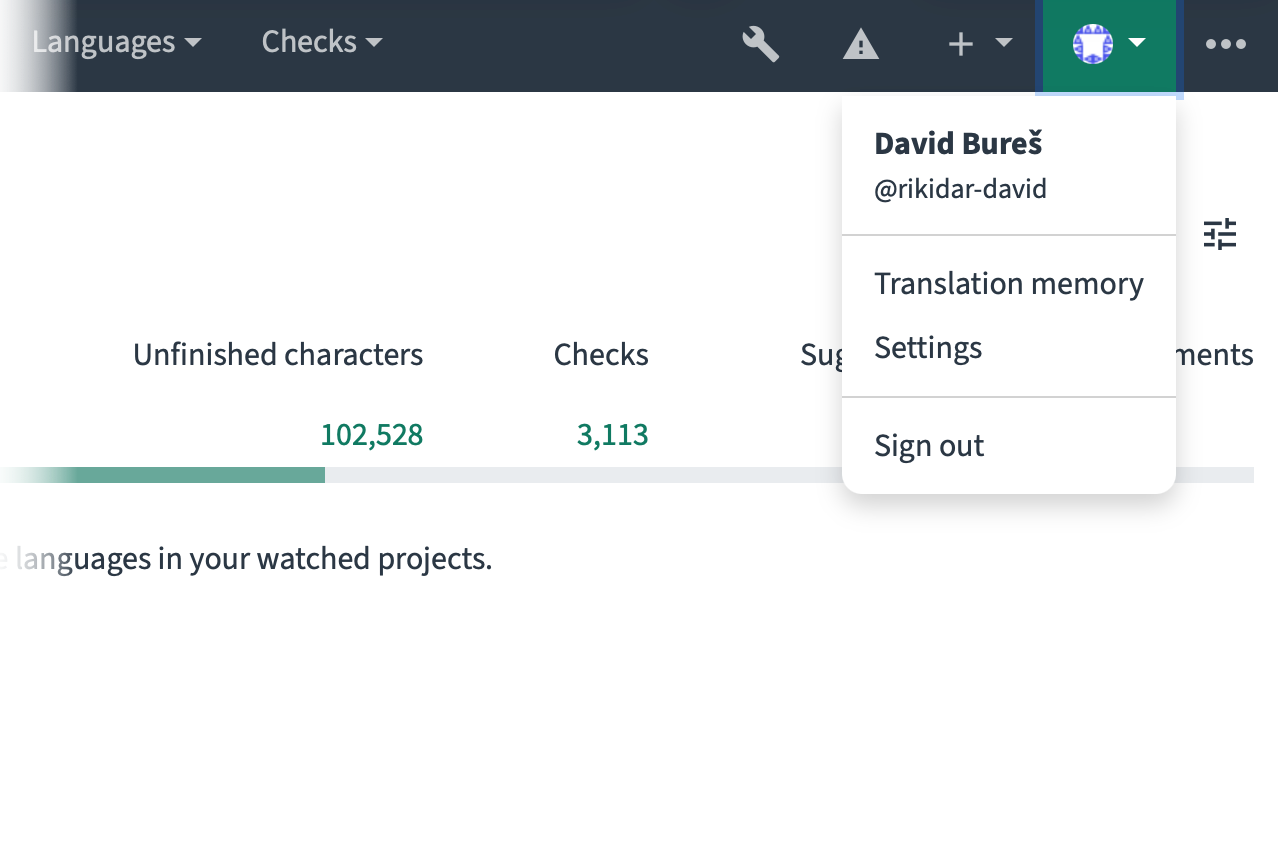](https://wiki.rikidar.eu/uploads/images/gallery/2026-08/2026-08-16-20-30-34.png) ### Choosing the Project and Language After you have logged in, you will see a list of projects. For this example, we will be using [Cork](https://wiki.rikidar.eu/books/cork "Cork - The Ultimate Homebrew Companion"). 1. Click on the name of the project you want to translate. [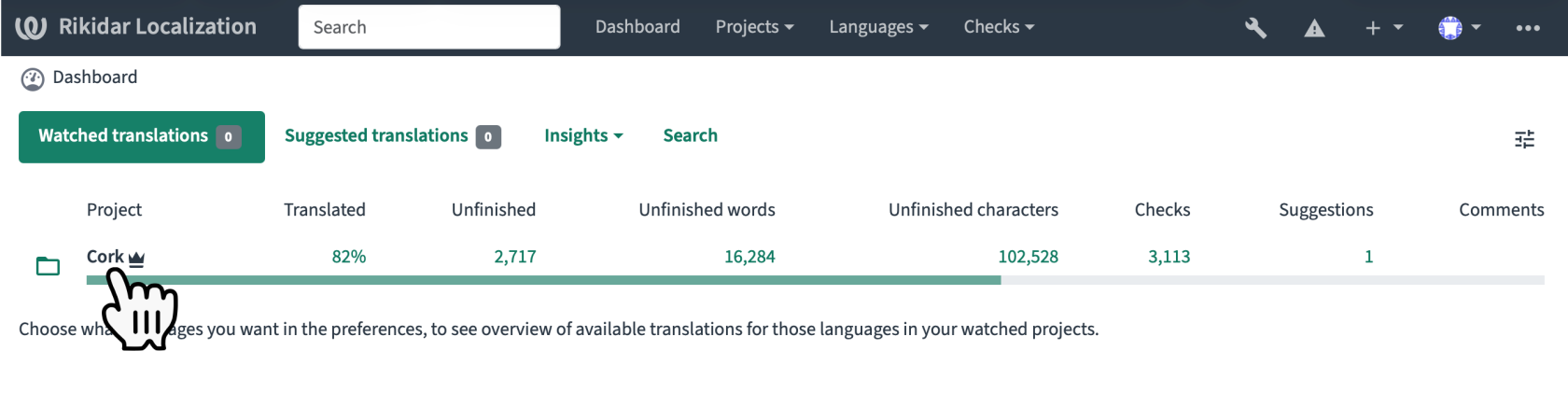](https://wiki.rikidar.eu/uploads/images/gallery/2026-08/2026-08-16-20-33-30.png) 2. In the list of languages, click on the language you want to translate. [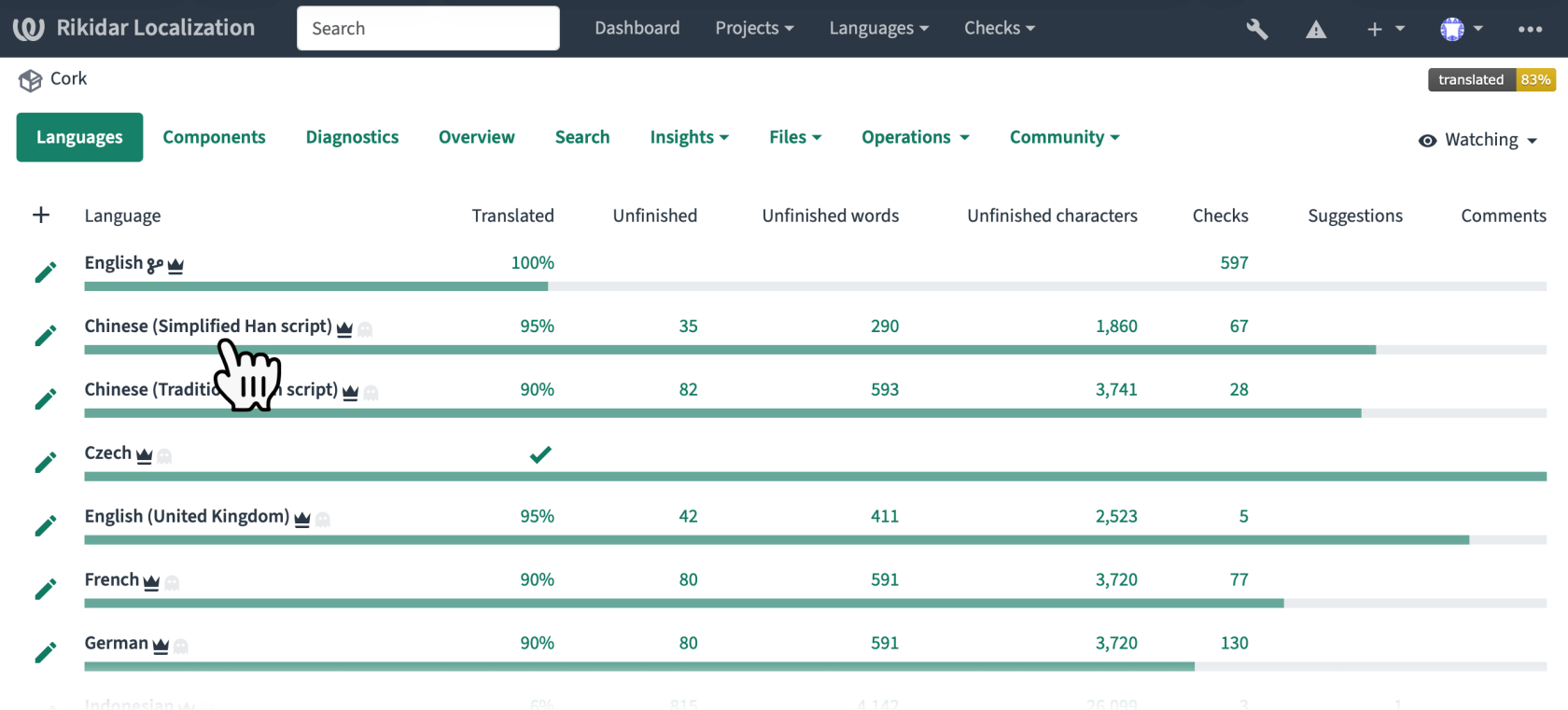](https://wiki.rikidar.eu/uploads/images/gallery/2026-08/2026-08-16-20-36-05.png) 3. Click `Translate` to start translating all unfinished strings, or one of the statuses in the **String status** list below to translate a more scoped subset of the strings [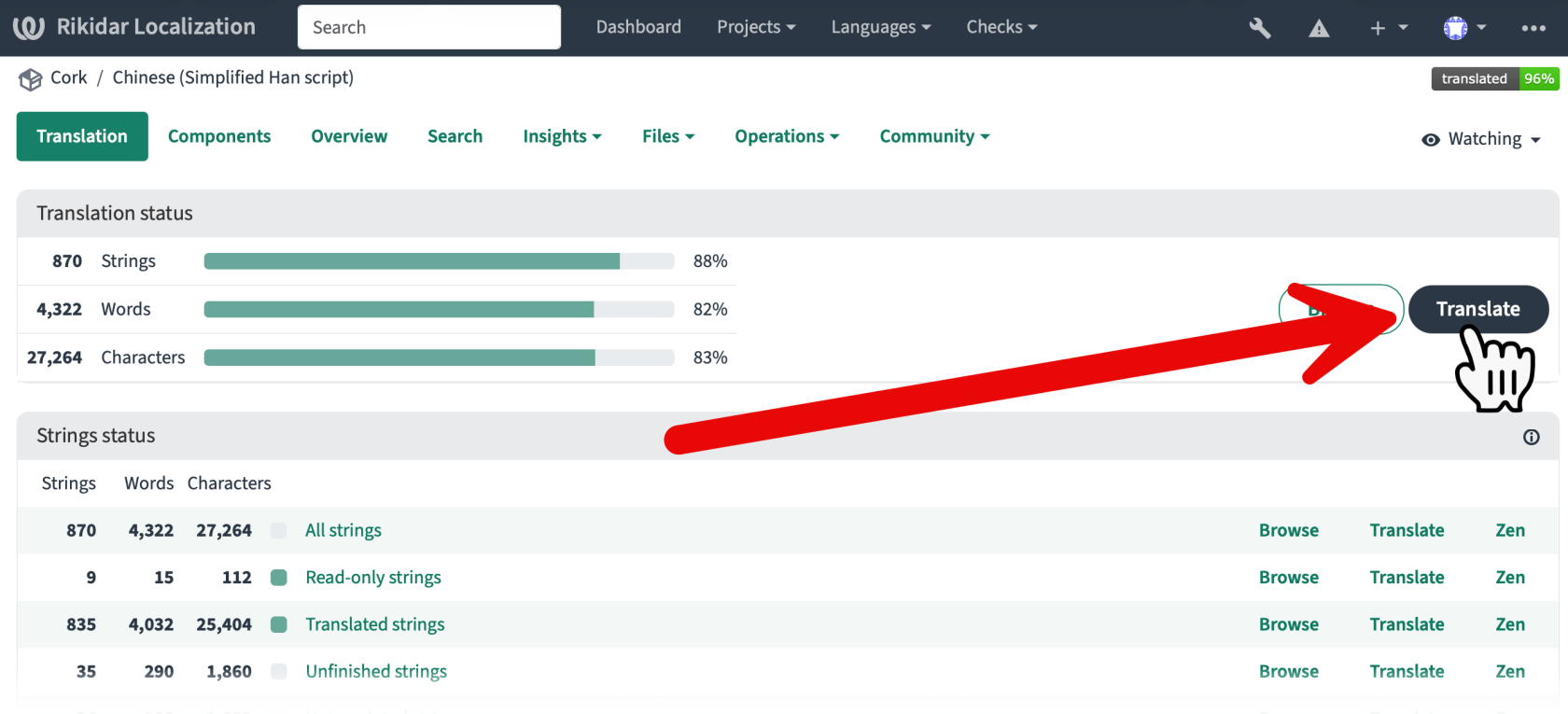](https://wiki.rikidar.eu/uploads/images/gallery/2026-08/2026-08-16-20-47-50.png) You will now enter the translation studio. ### Using the Translation Studio The translation studio is divided into multiple sections: [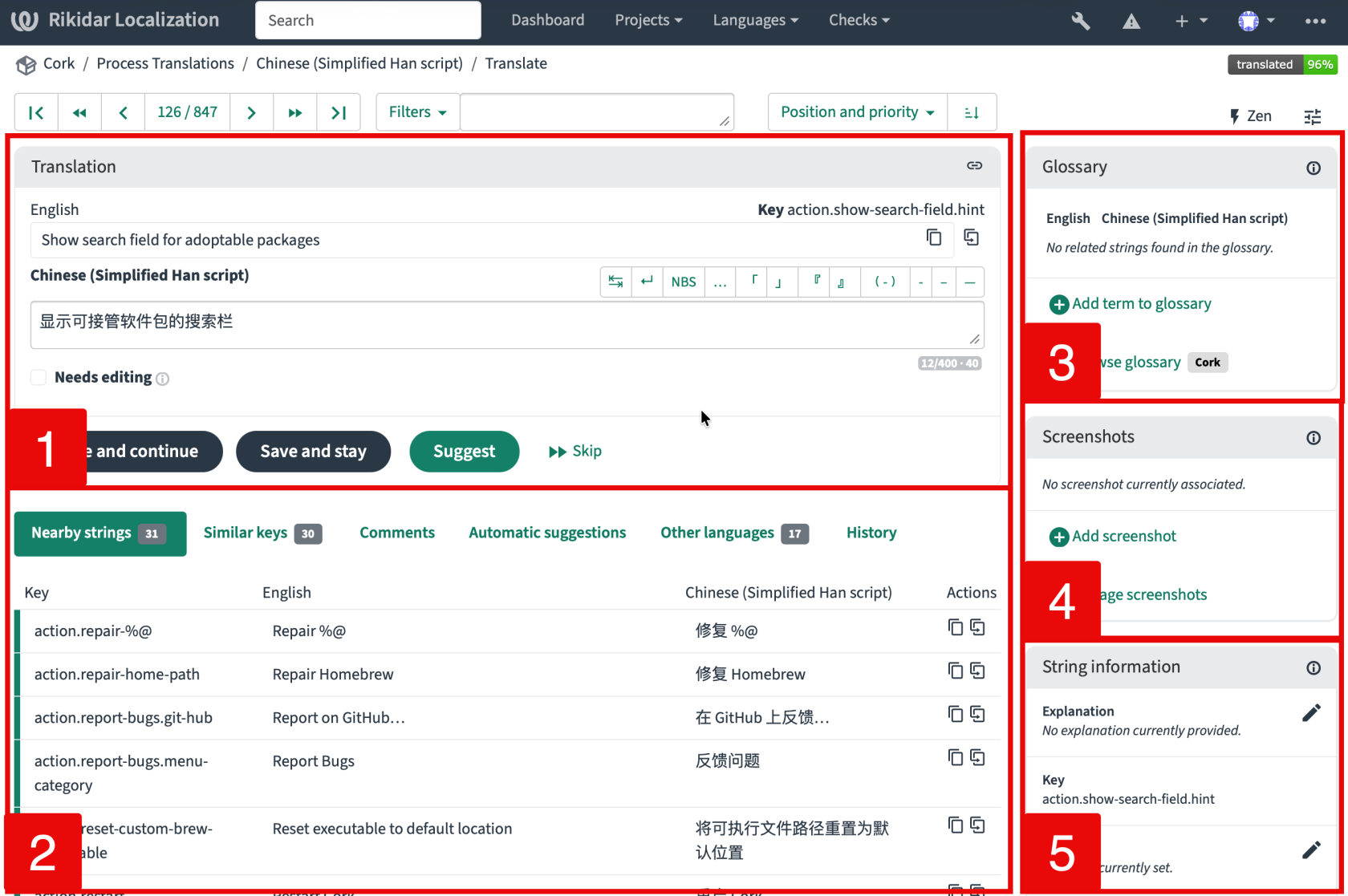](https://wiki.rikidar.eu/uploads/images/gallery/2026-08/2026-08-16-20-53-53.png)| **1.** | **Translation Editor** This is where you translate strings into your language. To confirm a translation and advance to the next string, press `⌘ (CMD) + ↩ (Return)`. Alternatively, you can click: - `Save and continue` to confirm the translation, and advance to the next string - `Save and stay` to confirm the translation, and stay on the page You can also click `Skip` to advance to the next string without saving any translations. |
| **2.** | **Context** Strings similar to the one you are currently translating are shown here. |
| **3.** | **Glossary** Strings that have pre-defined translations are shown here. [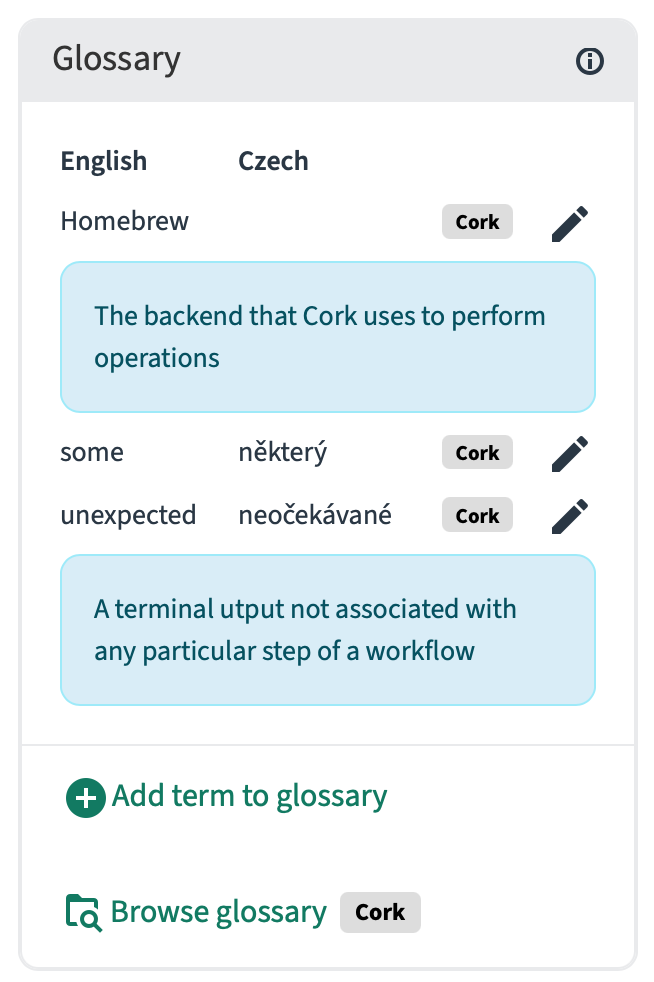](https://wiki.rikidar.eu/uploads/images/gallery/2026-08/image.png) |
| **4.** | **Screenshots** Supplementary screenshots relevant to the string [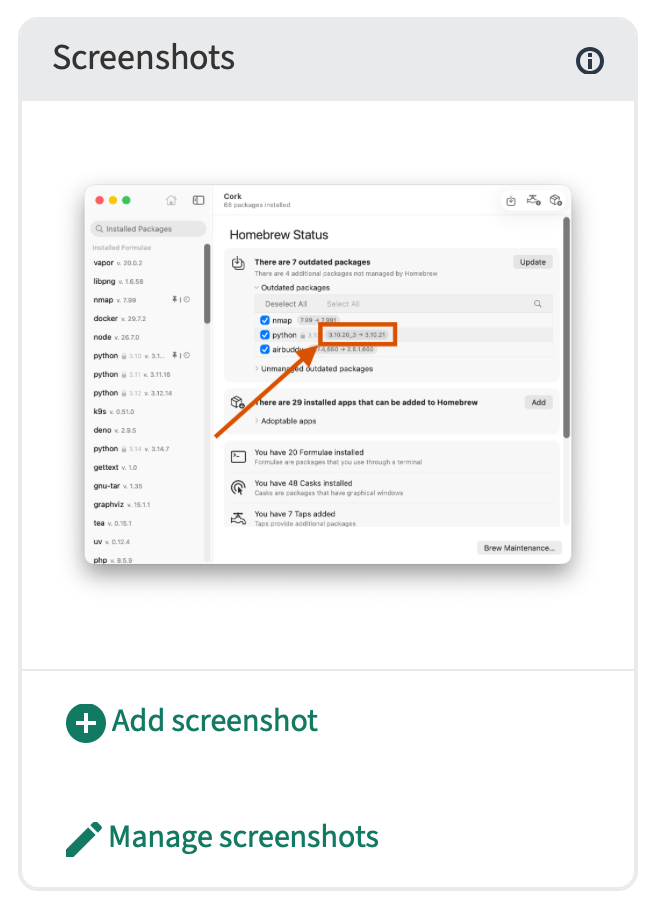](https://wiki.rikidar.eu/uploads/images/gallery/2026-08/snimek-obrazovky-2026-08-16-v-21-07-05.png) |
| **5.** | **String Information** Various additional information about the string [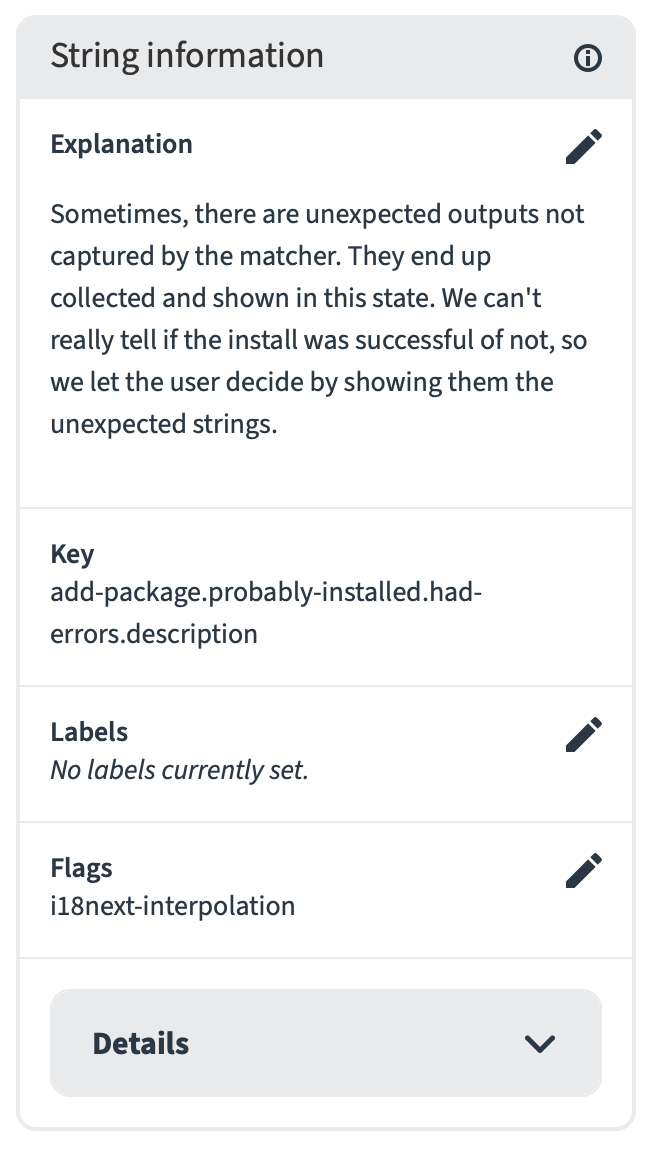](https://wiki.rikidar.eu/uploads/images/gallery/2026-08/2026-08-16-21-29-52.png) |