Weblate - Translation
Getting Access to Weblate
PREREQUISITE:
Before you proceed, make sure you have a Rikidar Authenticator account. If not, you can learn more here.
While anyone can see the current state of Cork's translation, you will need an additional role to contribute translations.
To get the required role:
- Join Cork's Discord
- During setup, pick I want to translate Cork, which will give you the required role to access the #localization channel
- Now, you have two options:
- In the #localization channel, send a message describing which language you'd like to translate. For a faster response, mention
David Bureš - Write a direct message to
David Bureš(who has the Cork Creator role) describing which language you'd like to translate
- In the #localization channel, send a message describing which language you'd like to translate. For a faster response, mention
- Wait until you hear back
Now, if approved, you will have access to Weblate, along with all the necessary permissions to start translating.
Translating using Weblate
PREREQUSITE:
Before you can start translating, make sure you have a Rikidar Authenticator account, along with the required additional permissions.
Now that you have access to Weblate, you can log in:
- Go to https://localization.code.rikidar.eu/.
- You will see an overview of the currently active translation projects. Click
Sign In.
- You wil be automatically redirected to Rikidar Authenticator, where you should log in.
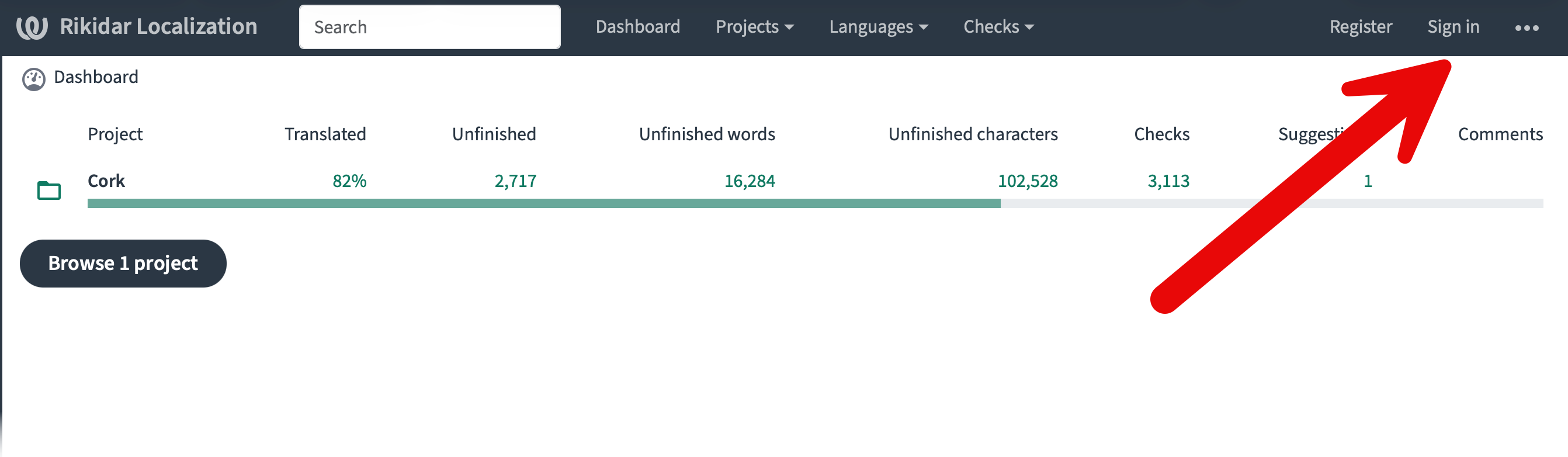
To verify that you are logged in, click your avatar on the top right and see if your username matches.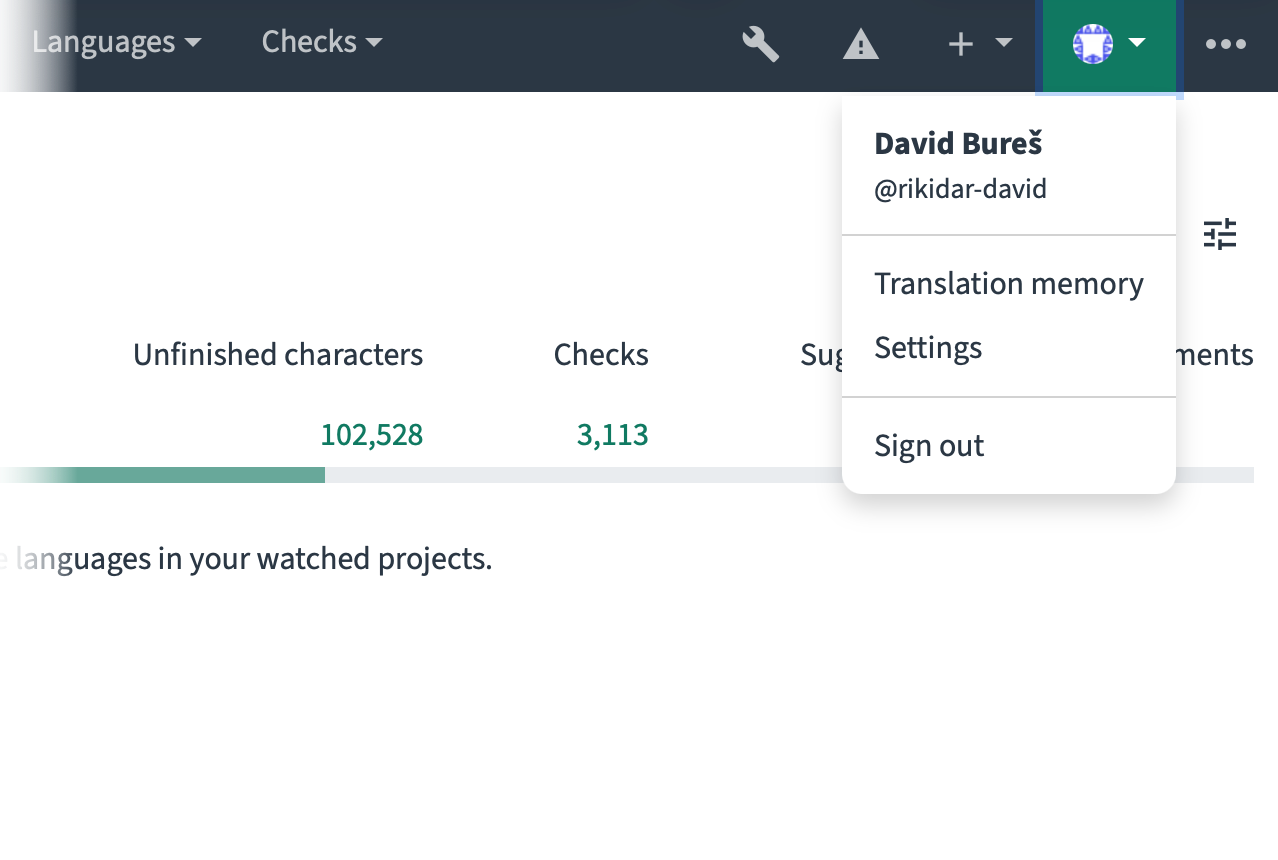
Choosing the Project and Language
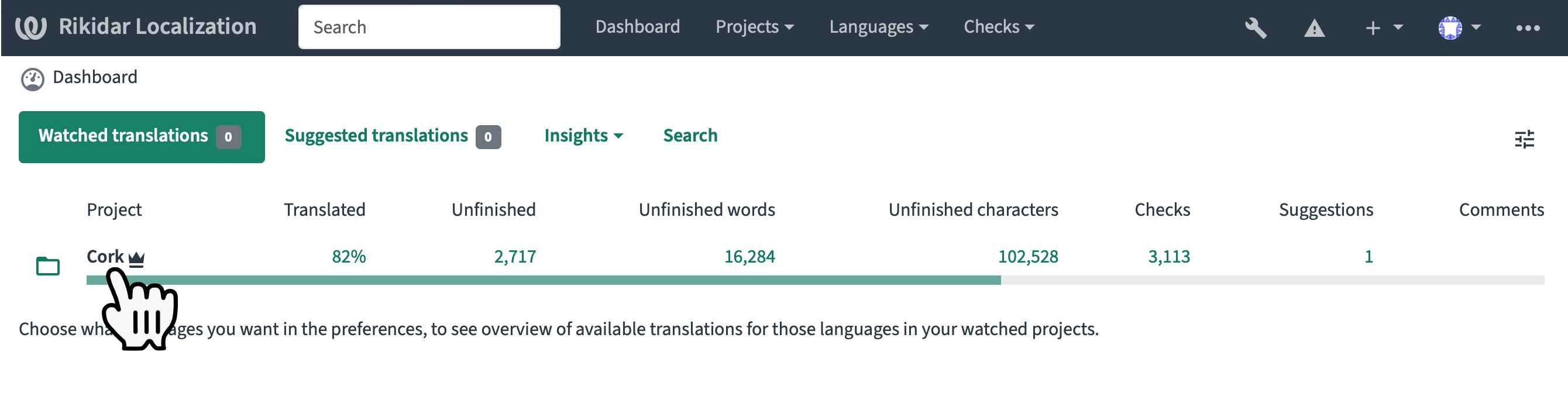
After you have logged in, you will see a list of projects. For this example, we will be using Cork.
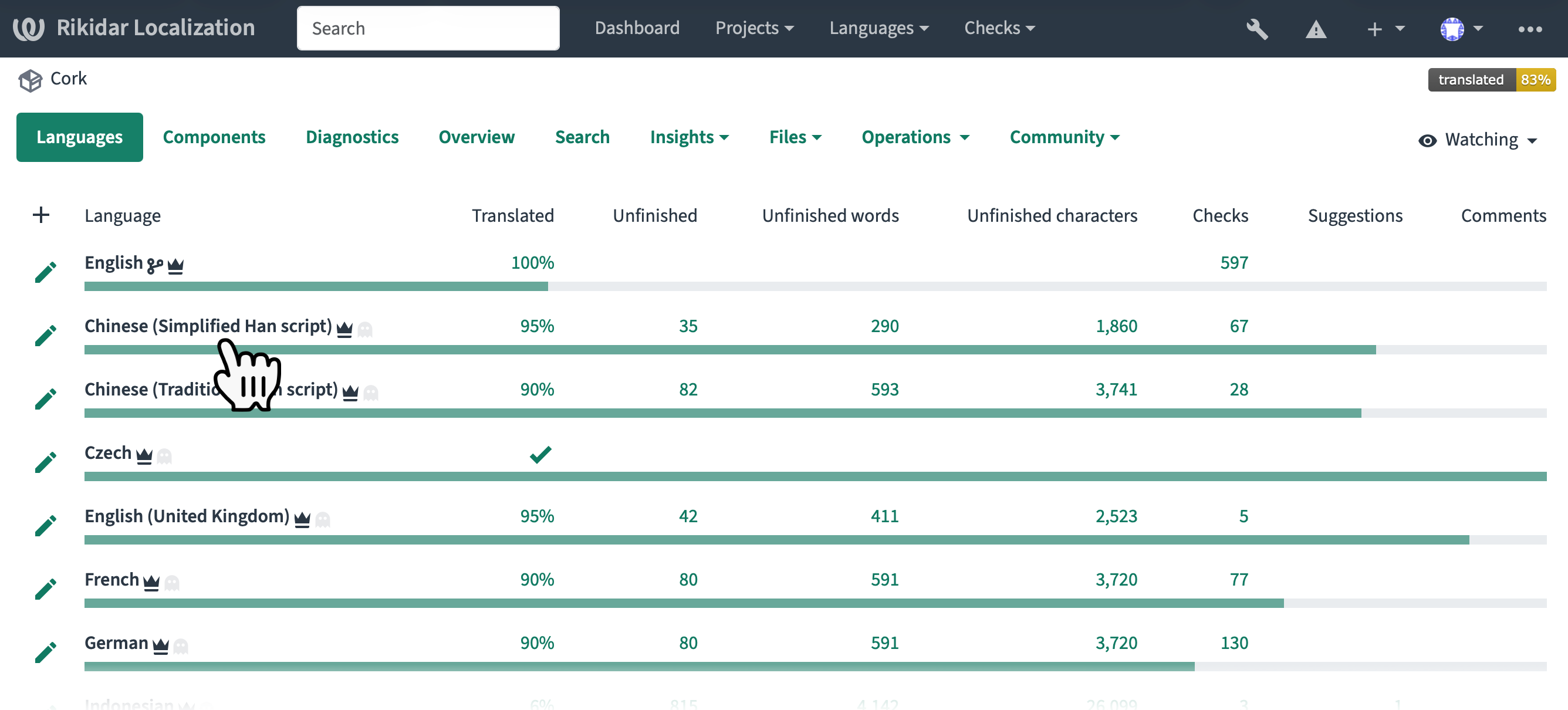
- Click on the name of the project you want to translate.

- In the list of languages, click on the language you want to translate.

- Click
Translateto start translating all unfinished strings, or one of the statuses in the String status list below to translate a more scoped subset of the strings
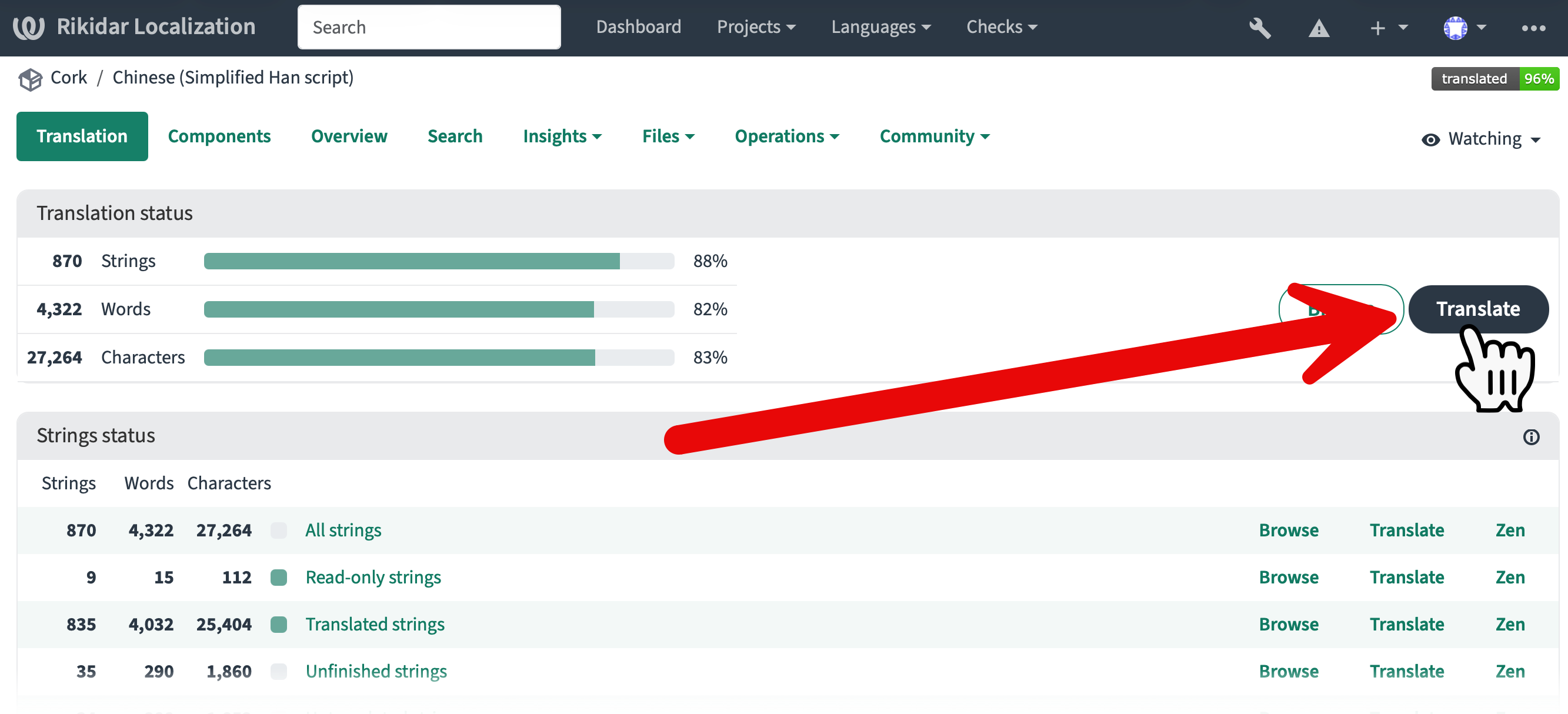
You will now enter the translation studio.
Using the Translation Studio
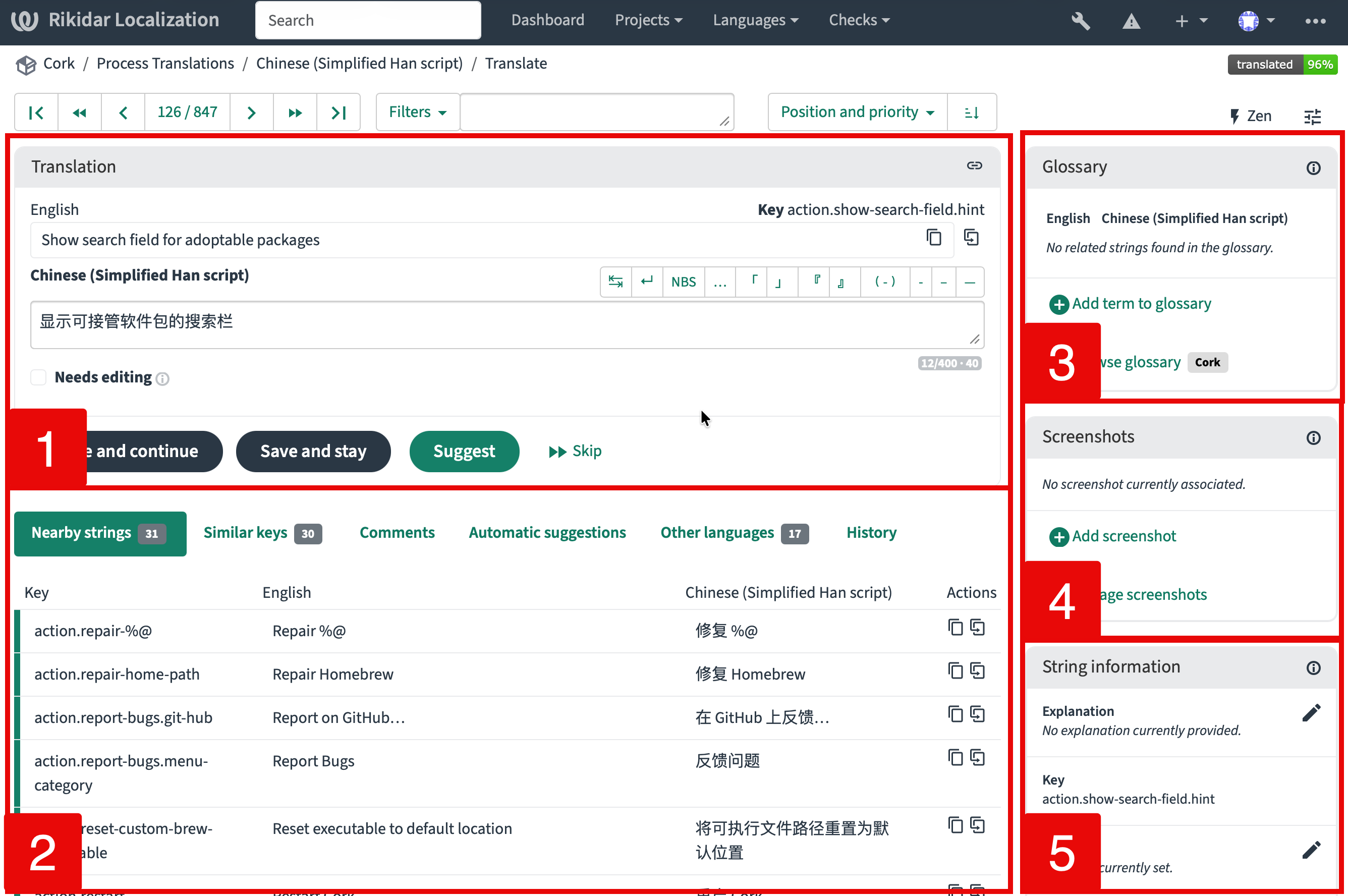
The translation studio is divided into multiple sections:
|
1. |
Translation Editor
Alternatively, you can click:
You can also click |
|
2. |
Context
|
|
3. |
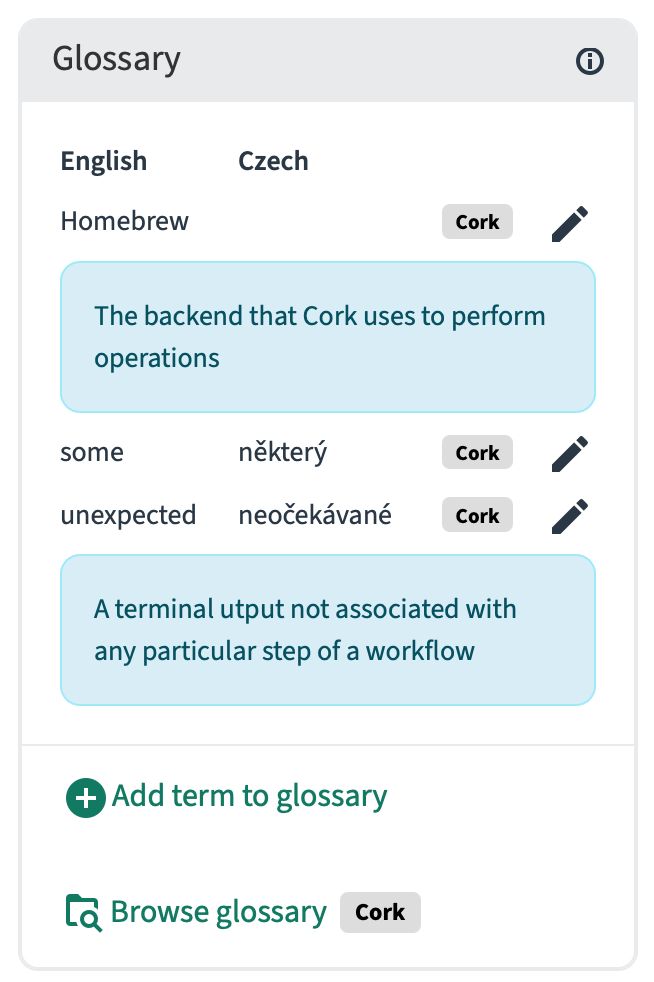
Glossary Strings that have pre-defined translations are shown here.
|
|
4. |
Screenshots Supplementary screenshots relevant to the string 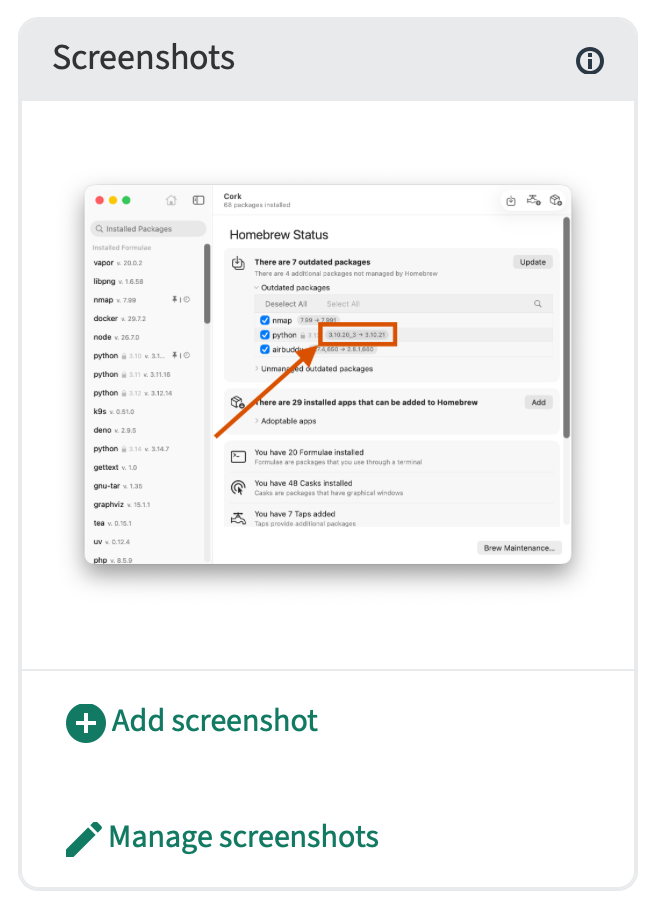 |
|
5. |
String Information Various additional information about the string 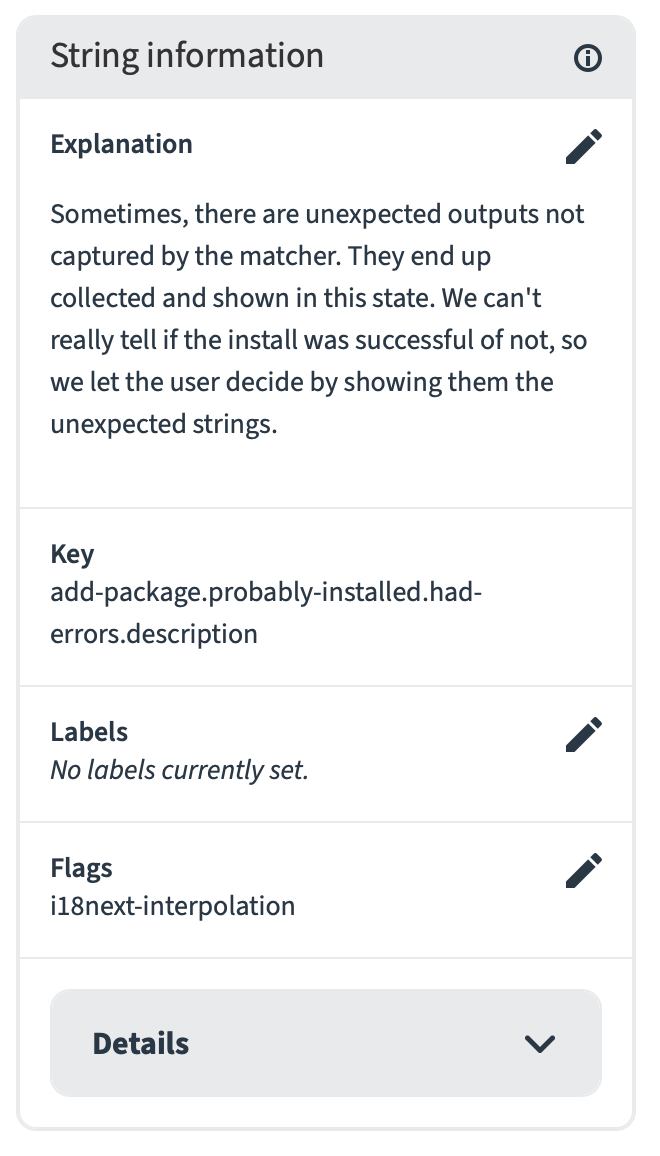 |