# Rikidar Authenticator

The Rikidar-wide Single Sign On solution using PocketID

# What's Rikidar Authenticator?

Rikidar Authenticator is a [Single sign-on](https://en.wikipedia.org/wiki/Single_sign-on "What's Single sign-on?") service that lets you access all Rikidar platforms with a single account, instead of creating a separate acount for every platform.

These platforms include:

- [Weblate](https://wiki.rikidar.eu/books/weblate-translation "Weblate") for translation
- [Forgejo](https://wiki.rikidar.eu/books/forgejo-code-repository "Code Repository") for code sharing
- This very wiki for documentation

# How does Rikidar Authenticator work?

Rikidar Authenticator uses [PocketID](https://pocket-id.org), a [Passkey-only](https://safety.google/safety/authentication/passkey/), self-hosted solution for creating and managing user accounts.

Because it supports only Passkeys, you don't need usernames or passwords, which makes it incredibly secure and resistant to phishing attacks. You also don't need to remember any passwords.

<table id="bkmrk-advantages-one-accou" style="border-collapse:collapse;width:100%;height:142.4375px;"><colgroup><col style="width:100%;"></col></colgroup><tbody><tr style="height:29px;"><td style="height:29px;">Advantages</td></tr><tr style="height:84.4375px;"><td style="height:84.4375px;">1. One account for every Rikidar platform
2. Very secure
3. Convenient

</td></tr><tr style="height:29px;"><td style="height:29px;">Disadvantages</td></tr><tr><td>1. Password manager or physical token is required

</td></tr></tbody></table>

# Getting a Rikidar Authenticator account

To get an account:

1. Go to [https://auth.rikidar.eu](https://auth.rikidar.eu)
2. Click `<span class="editor-theme-code">Sign Up</span>`
3. Fill out the required details  
    <p class="callout info">**NOTE:**  
    The `<span class="editor-theme-code">Username</span>` field is your displayed username across all platforms</p>
4. Click `<span class="editor-theme-code">Sign Up</span>`
5. Once prompted, save the Passkey into your manager of choice - which can either be a password manager, or a physical key, such as Yubikey

Your account is now ready for use! Browse through the [Community Platforms](https://wiki.rikidar.eu/shelves/community-platforms) to learn where you can use it, or jump straight to the most used ones depending on the use:

- [Forum](https://forum.rikidar.eu "Rikidar Forum") for talking about Cork, Groove, etc.
- [Weblate](https://localization.code.rikidar.eu) for translating Cork, etc.  
    <p class="callout info">**TIP**:  
    To learn more about Weblate, read its [documentation page](https://wiki.rikidar.eu/books/weblate-translation)</p>
- [Rikidar Code](https://code.rikidar.eu "Rikidar Code") for contributing to code

# Using Rikidar Authenticator

Once you have an account, you can sign into the many supported services and platforms.

The workflow for signing up is the same on every platform:

1. On the platform, click the appropriate button for logging in
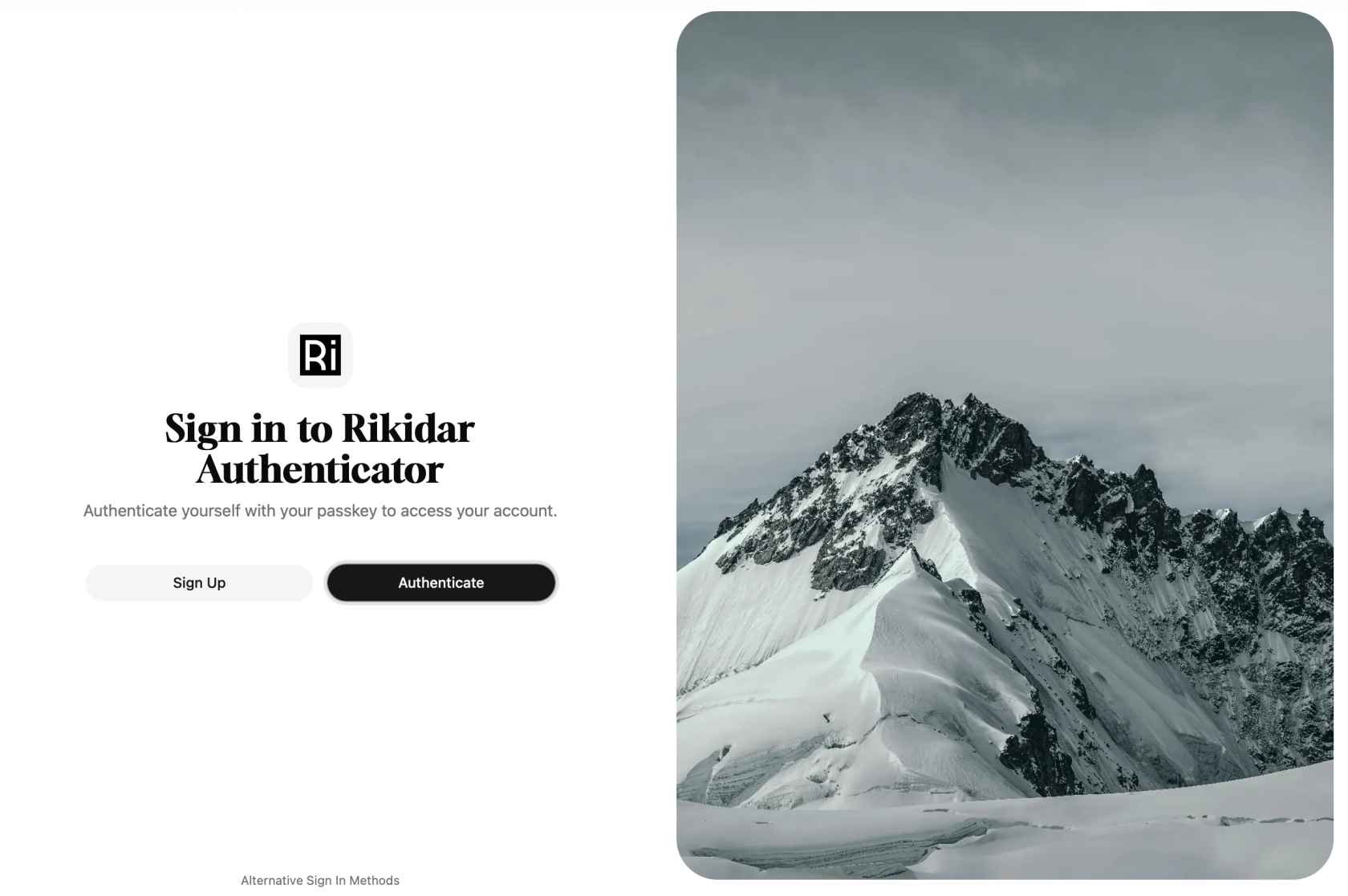
2. You will be redirected to a login page:  
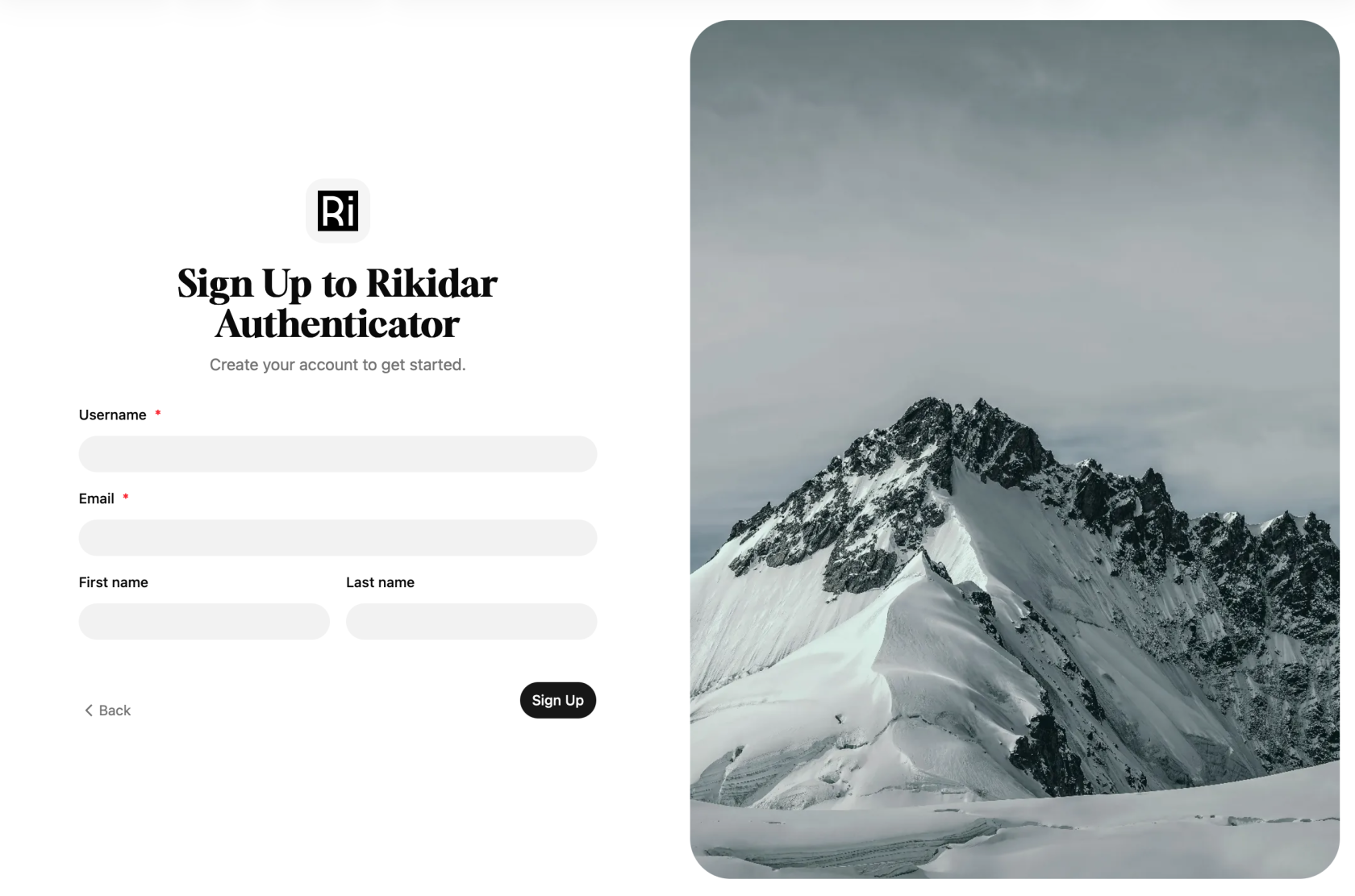
    [![2026-08-16_20-13-50.png](https://wiki.rikidar.eu/uploads/images/gallery/2026-08/scaled-1680-/2026-08-16-20-13-50.png)](https://wiki.rikidar.eu/uploads/images/gallery/2026-08/2026-08-16-20-13-50.png)<p class="callout warning">**WARNING:** If you see a page that says **Sign up to Rikidar Authenticator**, you are instead on another page that is used for registrations. In that case, you should report the button that got you there.  
    [![Rikidar Authenticator - Signup Page](https://wiki.rikidar.eu/uploads/images/gallery/2026-08/scaled-1680-/snimek-obrazovky-2026-08-16-v-19-19-36.png)](https://wiki.rikidar.eu/uploads/images/gallery/2026-08/snimek-obrazovky-2026-08-16-v-19-19-36.png)  
    </p>
3. You now have two options on how to log in: 
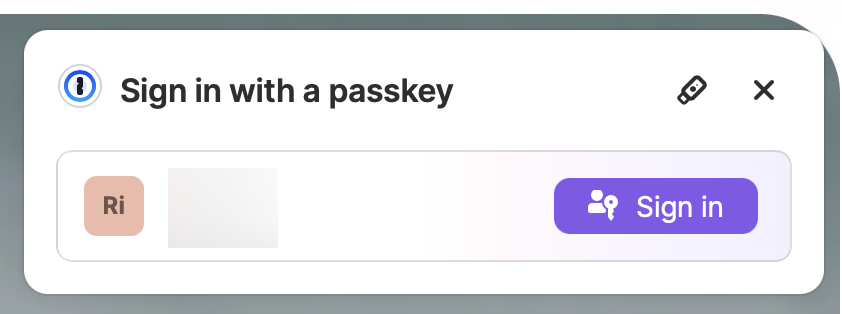
    - Click `Authenticate` or `Log In`, which will activate your Passkey workflow of choice  
        [![Passkey Login example](https://wiki.rikidar.eu/uploads/images/gallery/2026-08/scaled-1680-/2026-08-16-20-18-13.png)](https://wiki.rikidar.eu/uploads/images/gallery/2026-08/2026-08-16-20-18-13.png)
    - On the bottom of the page, click `Alternative Sign In Methods` to see other sign-in options, namely: 
        - **Sign in with another device**: Use a Passkey that you have saved on another device
        - **Login code**: In case you lost your Passkey, used to recover your account
4. You will be logged into the app, and forwarded back